We’re all familiar with the Maintenance mode tool created by Ryan Andorfer, well Stefan Rothhas created a utility for SCOM 2012 using the same look and feel. Well done Stephan.
I do need to note that this utility comes with a disclaimer to use at your own risk.
I’ve included the tool below, if you run into any issues or unexpected results the utility page is here leave Stephan a comment so he is aware of it.
I came across a great article by Jimmy Harper on how to export and import SCOM user roles and notifications. I’ve dealt with migrating notifications in the past but it is refreshing to see that a method exists which allows the same to be done for user roles. It certainly makes working with side-by-side deployments that little bit easier.
Just a quick note on the new AD management pack that was released with the 2012 R2 wave.
I noticed when using the console to check management pack versions and selecting “Show me updates for management packs I currently have installed” that the 6.0.8228.0 version of the AD management pack does not appear. This particular environment was SCOM 2007 R2 CU6
Has anyone else experienced this? Leave a comment.
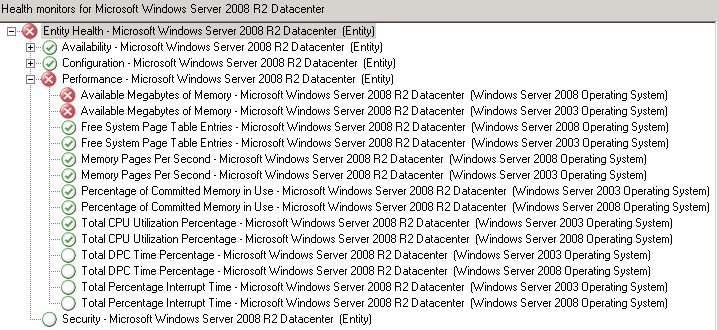
Now here’s something you certainly don;t see every day. It all started when I was asked to investigate a flood of memory alerts for a particular server at one of my customers. When I opened Health Explorer I noticed the following:
The server was running the monitors for Windows 2008 and Windows 2003.
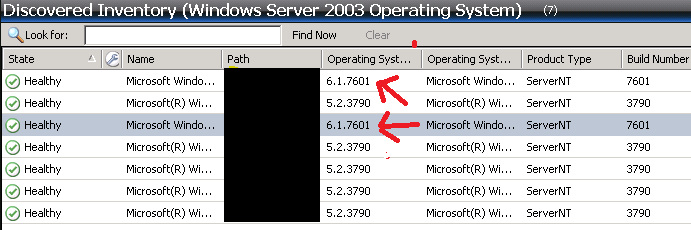
As it turns out the server had been recently re-installed from 2003 to 2008 with the same name, without the agent being uninstalled or being removed from the console. This caused a bit of confusion in the back-end. A quick look at the Windows Server 2003 Operating System Inventory showed another server which was “Upgraded” i in the same fashion:
What’s happened here is the class for Windows Server 2003 Operating System is still being loaded by the agent, and this is causing all of the related rules and monitors to load as well. In the past when I’ve come across this particular issue I’ve been able to solve it with the remove-disabledmonitoringobject powershell cmdlet.
All that you need to do is override the discovery rule in question to false for your object (In this case “Discover Windows Server 2003 Operating System) and then open OpsMgr Shell and run remove-disabledmonitoringobject. After a short delay the offending objects are removed.
However in this case the above did not work, eventually I deleted the agent from the console, waited for grooming to run (you can force it if you are in a hurry), cleared the local agent cache and then approved the agent. Now only the correct objects are being discovered.
Jalasoft has released a new version of it’s Xian Wings product, which allows SCOM information such as graphs, alerts and states to be viewed on SmartPhone and Tablet Devices.
No more running back to the office when your network beckons you. With Xian Wings for Microsoft System Center Operations Manager 2007 and 2012 (Operations Manager) you have a real client application for your smartphone, which means states, alerts, performance graphs, and more are always at your fingertips. Perform any task—from anywhere.
Features:
Just like with your Operations Manager console, Xian Wings lets you have a states-view to see the health of the objects you want to monitor.
Check the alerts of a specific object or see all the alerts that are currently active—right form your smartphone. Plus, you can easily filter or limit the number of alerts forwarded to your mobile devices so you only see what you need. You can even view and change alert properties in real time, right from your phone. No more being tied to your Operations Manager console.
How’s your network performing? You’ll always know. Xian Wings lets you see performance graphs on your smartphone too. Just select the object and the counters you want to view and you’ll get the corresponding graph. Xian Wings even stores the latest graphs you made automatically so you can quickly retrieve them with a couple of taps.
Whether you need to obtain memory usage information, IP configuration, or respond to an event that you would normally respond to, Xian Wings lets you do the tasks you need to do from your smartphone. It is up to you to create even more Operations Manager tasks to execute while you are out of the office.
Want the most important alerts the moment they occur? Xian Wings gives you the option to set up notifications, too. It’s simple. No need to synchronize Xian Wings—you’ll be notified of important alerts automatically.
Especially for iPad, there is Wings HD. This version offers all the features of Wings but adjusted for tablets. You have the ability to create your own dashboards with graphs, states, alerts, a click on any object will open an object related screen that gives you the direct ability to see the root cause of the problem and take actions. It is now possible to run power shell and prompt commands directly from your iPad against the OpsMgr server or another computer. And besides alerts, states and performance graphs, it is possible to add a notifications widgets to any Wings dashboard. Wings HD is the best mobile dashboard you can wish for Operations Manager
As many of you are aware new Management Packs have been released for Windows Server 2012 R2 and System Center 2012 R2. Remember to read those guides and leave a comment if you experience any issues with these Management Packs.
This past friday saw the release of the Visual Studio Authoring Extensions for System Center 2012.
The Visual Studio Authoring Extensions allow you to create management packs for System Center 2012 – Operations Manager using Visual Studio.
Work directly with the XML of the management pack allowing you to create any management pack element and monitoring scenario.
Provides XML templates and IntelliSense for different management pack elements so that you don’t have to have detailed knowledge of the schema.
Allows you to create XML fragments containing different management pack elements. The fragments can be copied within the management pack, to another management pack, and combined to build the final management pack.
Allows multiple authors to work on a single management pack project at the same time.
Download here
Documentation and requirements can be found here
With the upcoming release of System Center 2012 R2, Microsoft will be replacing the familiar SCOM agent with a new Microsoft Monitoring Agent which can be downloaded here.
The key feature being that the agent can operate in a standalone configuration, which generates an IntelliTrace file view-able with Visual Studio 2013 Release Candidate.or any other version of Visual Studio 2013.
It is worth noting that the current SCOM agent is not compatible with SCOM 2012 R2, the MMA agent is however able to connect to a SCOM 2012 SP1 and RTM management groups meaning it will be worthwhile to upgrade your agents ahead of your Management Group if you want to minimize monitoring downtime.
Marnix Wolf has created a table detailing the primary differences between the two agents here.