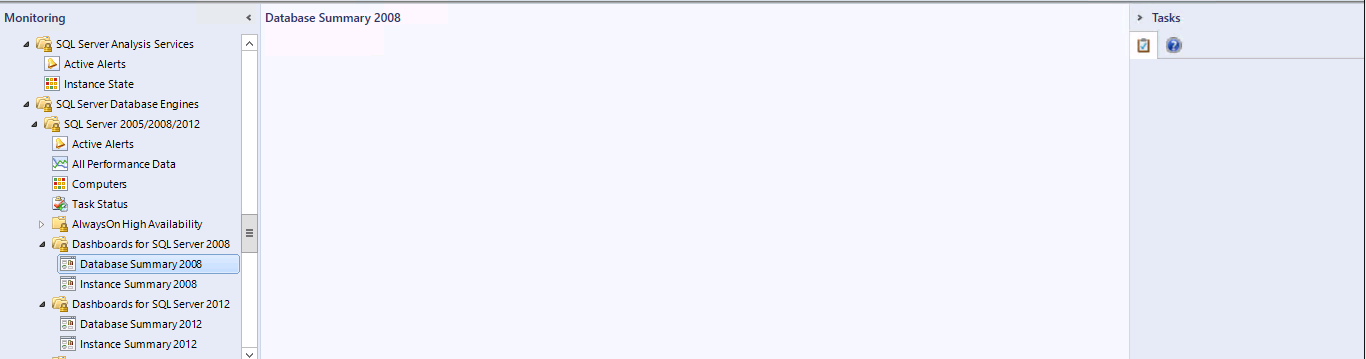
It’s always the bugs you come across when you are trying to do something else that can be the most frustrating. Today while creating some dashboards for one of my clients the views returned blank after saving them.
I then had a look at the SQL built in dashboards to see how widespread this issue was and had the same results. The dashboard pane was blank and the tasks also did not display.
First I tried restarting the console with the /clearcache command and this usually address display issues and had the same result.
I then tried a console on a different server and then I tested using the web console both loaded the dashboards properly . So I was dealing with a server issue or a profile issue.
A bit of research suggested that sometimes this problem can be caused by a corrupt .net installation. As this requires change approval in order to address I first tested the profile option by logging on to the same server, where I experienced the issue with another user account. This time the dashboards loaded correctly so it’s probably not a .net issue.
Considering that /clearcache didn’t work I wanted to first try and remove the momcache.mdb cache file located in C:\Users\<user account>\AppData\Local\Microsoft\Microsoft.EnterpriseManagement.Monitoring.Console in order to test all options before recreating the user profile.
After deleting momcache.mdb and re-opening the console all the dashboards now loaded correctly.
A management pack for Skype for Business Server 2015 has been released and is available for download here.
Skype for Business Server 2015, Management Pack contain comprehensive monitoring tools including:
End-to-End scenario availability from various locations.
Call reliability and quality perceived by real users.
Component health and performance.
Active Monitoring Management pack
Geographically distributable end-to-end scenario validation for Skype for Business Server 2015 deployments. This includes coverage for internal, remote and branch office users.
Increased scenario coverage in areas like AV Edge Connectivity and Exchange Unified Message Connectivity.
Enhanced troubleshooting logs to streamline root cause analysis of failures.
Component and User Management Pack
Increased reliability monitoring of real end user calls and conferences.
Integrated media quality alerts driven from Quality of Experience (QoE) data reported by client applications.
Full event and performance monitoring for all Skype for Business Server 2015 roles.
Over at the MS SCOM engineering Blog it’s been newly released that SCOM 2012 R2 now supports SQL Server 2008 R2 SP3.
There is a catch though see below for what to be aware of:
Issue: Fresh Install of SCOM 2012 R2 on SQL 2008 R2 SP3 will not work Workaround: Deploy SCOM 2012 R2 on to SQL 2008 R2 SP2 and after installation upgrade the DB to SQL 2008 R2 SP3
An odd issue I encountered today at one of my customers that has recently completed a migration to SCOM 2012 R2, when trying to open the overrides node with no scope selected I got the following error “An object of class ManagementPackClass with ID <GUID Removed> was not found” and then the view shows 0 overrides until the console is reopened with a /clearcache.
Turns out this error is caused by having an override that references a class that no longer exists, in order to track it down you first have to access the overrides which you can no longer see unless you do the following:
1. Export your overrides to text file using poweshell by running get-scomoverride | out-file c:\SCOMOverrides.txt 2. Search the output text file for the GUID which was in the original error “An object of class ManagementPackClass with ID <GUID Removed> was not found”
3. The GUID will appear on a line labeled Context, below that one look for a line labeled Identifier, In my case it looked as follows “Identifier: 1|Windows.Operating.System.Custom.Monitors”
4. Generally this is enough information to identify which management pack needs to be deleted if it is not then continue to step 5
5. In SQL run the following query, remebering to edit it for your Identifier, against your operationsmanager database select * from ManagementPack where ManagementPackSystemName like ‘Windows.Operating.System.Custom.Monitors’ 6. Once you have identified which management pack is causing your issue it needs to be deleted, once the new configuration is processed you will be able to see your overrides again.
Update Rollup 6 for SCOM 2012 R2 has just been released. As usual the update can be done through windows update or downloaded through the MS catalogue here. As always give this update a thorough test before deploying to your live environments.
Fixes in this update:
Operations Manager
The “Remove-DisabledClassInstance” Windows PowerShell command times out without completingThe cmdlet takes lots of time to complete in large SCOM installations and sometimes times out without completing its work. This is fixed by optimizing the query that is used for deletion.
Duplicate closed alertsThe Find option in a message view sometimes gives results of the current search together with the results from previous searches. This occurs because of an update issue in the grid and is fixed so that values are displayed that correspond only to the current search.
Topology widget objects lose location when they are opened in a console that has a different locale and decimal formatTopology widgets that are created in one locale but are viewed from another locale display an incorrect location because of the widget’s inability to interpret locale-specific formatting. This issue is fixed, and users can now create and view topology widgets from different locales.
WebConsole Details widget does not display anythingWhen you click a message in the Alert widget, the details of the message are not displayed in the details widget on WebConsole. This issue is fixed by fixing the XAML page of the details widget. The XAML page was preventing the data from being displayed on the page.
Top 10 Performance widgets (WebConsole) are sometimes emptyThe Top 10 Performance widgets (WebConsole) are sometimes empty because of a performance issue. This issue was fixed in Update Rollup 3 through an MPB file that requires a manual import. Because many users missed importing the MPB, a fix is included in this update rollup as an SQL query update.
Problem with decoding SCOM trace log filesSometimes Operations Manager trace logs do not decode but generate the error “Unknown(X ): GUID=XXX (No Format Information found).” This occurs because the latest TMF files that contain formatting information for the related traces are missing. All TMF files are updated to make sure that traces are formatted correctly.
Unix/Linux Management Pack
JEE: WebLogic 12.1.3 servers on Linux or Solaris are not discoveredWebLogic 12cR1 Rel3 Java Application Servers that are installed on Linux and Solaris are not discovered.
Note The UNIX or Linux agent must be updated after you install the Management Pack update to resolve this issue.
Relevant log messages:
/var/opt/microsoft/scx/scx.log
2015-02-04T15:28:18,797Z
Trace [scx.core.common.pal.system.appserver.appserverenumeration:379:15739:139715041470400] Weblogic process does not contain the ‘platform.home’ or ‘weblogic.system.BootIdentityFile’ commandline argument.2015-02-04T15:28:18,797Z
Trace [scx.core.common.pal.system.appserver.appserverenumeration:462:15739:139715041470400] Merging previously known instances with current running processes
In rare cases, lots of omiagent processes may be observed on a UNIX or Linux computerIf a single instance of data that is returned by an OMI provider is larger than 64 kilobytes (KB), the omiagent process becomes unresponsive, and additional omiagent processes are created. This issue can occur on a managed UNIX- or Linux-based computer if a rule or monitor returns an instance of data larger than 64 KB. This is most likely to be seen when a custom shell command or script rules return lots of data in StdOut.
Note After you upgrade the Operations Manager UNIX/Linux agent to the version that is contained in this Management Pack update, an instance that exceeds 64 KB will be truncated and will generate the following message in the scx.log file. You can use the log message to identify and change the workflow that is returning too much data.
ExecuteCommand: Exceeded maximum output size for provider (64k), output truncated. Monitoring will not be reliable! Command executed: “
The SSLv3 protocol cannot be disabled in OpenSSL as used by the UNIX and Linux agentsWith this update, you can now disable the SSLv3 protocol for the Operations Manager UNIX and Linux agents. You can do this by adding a property to omiserver.conf (/etc/opt/microsoft/scx/conf). If SSLv3 is disabled, the UNIX and Linux agent will reject connections that cannot be negotiated by using TLS encryption. If SSLv3 is enabled (this is the default configuration), SSLv3 will be used only if TLS encryption cannot be negotiated.
An issue to keep an eye our for in your SCOM and SCSM envionments
This KB article contains 5 potential workarounds if you find yourself experiencing the below problem:
After applying the following update, the System Center Data Access service or the System Center Management Configuration service may fail to start with a time-out error.
Also, after opening the Service Manager console the following error may be displayed:
Reporting Data Warehouse management Server is currently unavailable. You will be unable to view reports or administer the Data Warehouse until this server is available. Please contact your system administrator. After the server becomes available please close your console and re-open to connect.
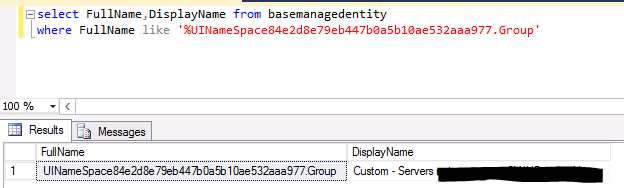
There are certain alerts and error events that will refer to a Group UINameSpace ID, in order to convert this to the Group Display Name you can use the following SQL Query against your OperationsManager database.
select FullName,DisplayName from basemanagedentity where FullName like ‘%<UINameSpaceID>.Group’
Microsoft has just announced a new update rollup for the Microsoft Monitoring Agent, the KB article and download link is here.
Issues that are fixed in this update rollup
Proxy settings are added to the agent setup wizard.
Users can now provide proxy settings while they complete the agent installation wizard.
Account validation steps are added to the wizard.
After users enter an account and workspace to connect to Operational Insights, the wizard performs a test to verify that the account information is valid.
Connection status is added to Control Panel.
A connection status feature is added to Control Panel settings for the Microsoft Monitoring Agent.