Sometimes for a variety of reasons it becomes necessary to try and figure out which gateways are paired to which management servers and unfortunately this is a configuration that can often slip under the radar when documenting a management group.
Luckily there is a simply way to figure this out without having to log on to each server and trawl through the registry.
Powershell to the recue!
Get-SCOMGatewayManagementServer | where {$_.Name –eq “< GATEWAY SERVER >”} | Get-SCOMParentManagementServer
Note: this command has changed slightly from past versions of SCOM
Workbooks have a couple of new action types which let you do some very cool things. The one I’m going to focus on now is called ARM actions and this is some amazing stuff , if you thought workbooks were powerful before then watch this space!
Arm Actions
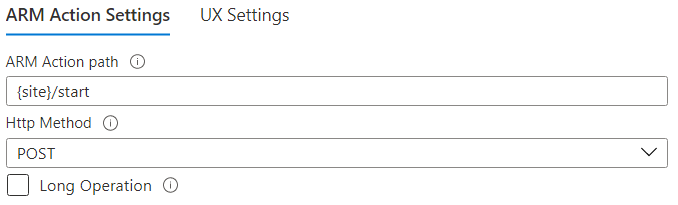
First ARM actions can be used to call various Azure actions against a resource. In the example workbook you can Start and Stop a website which is quite useful as you can do it directly from the workbook without having to navigate to the Resource Blade.
This uses a parameter to fetch the site name and pipes it into an ARM action of Start
Calling a Logic App
Super cool and very useful. Now lets look at how we can up our game a little bit. Using this same method you can actually call a Logic App, this is slightly more complex as you need to have the ARM Action path to said Logic App which looks like this:
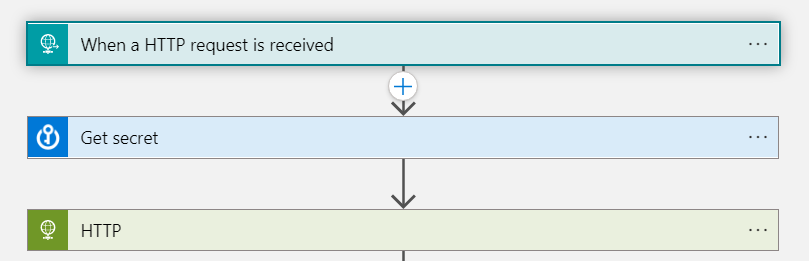
Note the various parameters and you can also parametrize the Logic App name, I have it hardcoded in this example. Also note in this case the trigger type is manual, this because the Logic App trigger is “When an HTTP request is received” and I am sending a JSON payload from the worbook to the Logic App.
You can also specify other triggers for Request, Recurrence and API Connection.
Now what can you do with this? Well as you might imagine the possibilities are endless, in my case I’m calling the Logic App to populate a secondary set of App data into Log Analytics to add more scope to the original workbook.
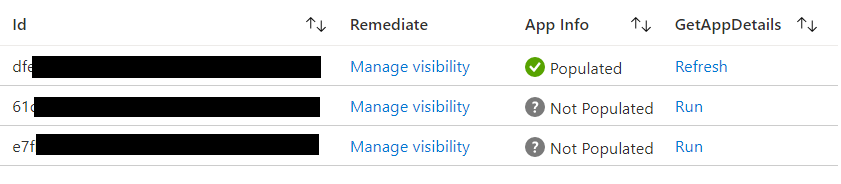
Once the Logic App has been run the App Info column changes to Populated and the GetAppDetails prompt changes to Refresh, the data is then made visible in a second grid below.
Conclusion
I’m very excited by the world that has opened up with this type of advanced workbook essentially turning them from an awesome visual tool into an awesome manageability tool.
If you ‘ve made use of this functionality I’d love to hear from you.
I was recently afforded a very interesting opportunity to help extend the reporting capability of Microsoft Defender, the end result used a combination of a logic app and a workbook to achieve something that is quite awesome (even if I do say so myself). Huge thanks to Jason Baxter and Hesham SaaD for their part in this.
It is worth noting that while this particular case used Sentinel you can achieve the same with Azure Monitor and a standard logic app, the choice will come down to whether or not the data is security related.
Now while the full details of the solution can be found here. I wanted to take a brief moment to talk about the power of the framework for this solution which can be broken down into key components.
An API – now lots of applications have easily accessible monitoring data, however some don’t and there is often a wealth of information to be found with a web call to an API endpoint.
A logic app – getting data from an API to log analytics may seen complex but using a logic app offers a low code approach which can meet most solutions needs. In the event of scaling it is also possible to use PowerShell and Azure functions to achieve a move robust result.
A Workbook – As some of you may know I am a huge proponent of workbooks, they offer interactivity and flexibility while being easy and quick to create (more on that here), and you can of course also alert on the data once it’s in your Log Analytics workspace or even use PowerBI to further enrich your visuals.
The possibilities are literally endless, in the last week alone I’ve been asked to adapt this method monitor elements of other products such as Microsoft Teams. This a great method to keep in the back pocket and I’d love to hear from anyone who’s using it or something similar.
The much anticipated UR3 for SCOM 2019 is out as usual available through windows update or via the packages here
This is a solid update with many useful fixes and includes the security hotfix released last month for previous versions of SCOM 2019
Improvements and issues that are fixed
Operations Console fixes and changes
SCOM UI scaling issues for high resolution displays have been fixed to work seamlessly.
Some IPv4 resources were being discovered as IPv6 in a cluster where both resources co-existed. This logic has been fixed to ensure IPv4 resources are no longer discovered as IPv6.
The UR2 setup stalling issue at the “Removing backup files” stage has been fixed. The task wait time threshold has been set to 30 mins. It is also recommended to have Service Broker always enabled for smooth functioning of Operations Manager.
The assumption of having provider element to be the first reference in the connection string has been removed in the OleDB module.
Fixed the combo box related text issue regarding the domain of a new RunAs account getting incorrectly changed.This issue was arising when creating a new RunAs Account in the SCOM console for an account that belongs to an untrusted domain, the fix ensures that the domain of the newly created RunAs Account should remain the one initially specified during the account creation.
Fixed the “invalid class” error that was occurring when adding a subscriber with user details having more than 1024 attributes.
Daily aggregation of reports now takes date and time into consideration to ensure time-period calculation is accurate.
Fixed the monitoring agent related issue around formatted strings, these are now read from the provider dlls to show a localized string.
Fix has been provided for when the monitor erroneously turns critical due to the URL module incorrectly parsing the charset header value.
Web Console fixes and changes
The security issue regarding reverse tab nabbing has been fixed in the operations manager web console.
Fixed the filter issue that occurred when state view was created in “My Workspace” in the web console.
Global search option for Metrics section of Performance Widget in the Web Console has been fixed.
Other Fixes:
Updating Management Groups with a shared Data Warehouse to UR2 sometimes lead to issues with reports deployment. This is now fixed by restricting Installation of sealed MP with same version in the Data Warehouse.
Migrate SSL Admin certificates to Microsoft PKI – Pinning Thread for Agents
Fixed the issue that was occurring when the UR2 SQL patch is executed again on a previously patched database.
The deadlock issues arising when SCOM agents are put into maintenance mode using SCOM API with parallelism have been resolved by adding indexes and updating the SQL queries.
Performance improvement of the DB function fn_ManagedEntityLifetimeDependency.
Updated the scoping logic used in some State View queries and Console Cache Refresh queries for performance improvement.
Added “Recompile” flag for sprocs “p_SelectForTypeCache” and “p_SelectForNewTypeCache” for SCOM perf improvement.
Unix/Linux/Network monitoring fixes and changes:
The issue with SSH call failure leading to memory corruption has been fixed .
Fixed a thread race condition that was leading to Linux script based monitoring fails due to child process that failed to start.
Fixed an infinite loop condition, which was leading to the 100% CPU related issue.
The issue of the MonitoringHost.exe process crashing on the Management Servers that run the Unix/Linux workflows has been fixed.
Fixed the memory leak inside of the WsMan modules when UseMIAPI is enabled with workflows that have SplitItems set to TRUE for the EnumerateAsWA WriteAction.
The workbooks community must be well behaved because we’re getting presents all year round.
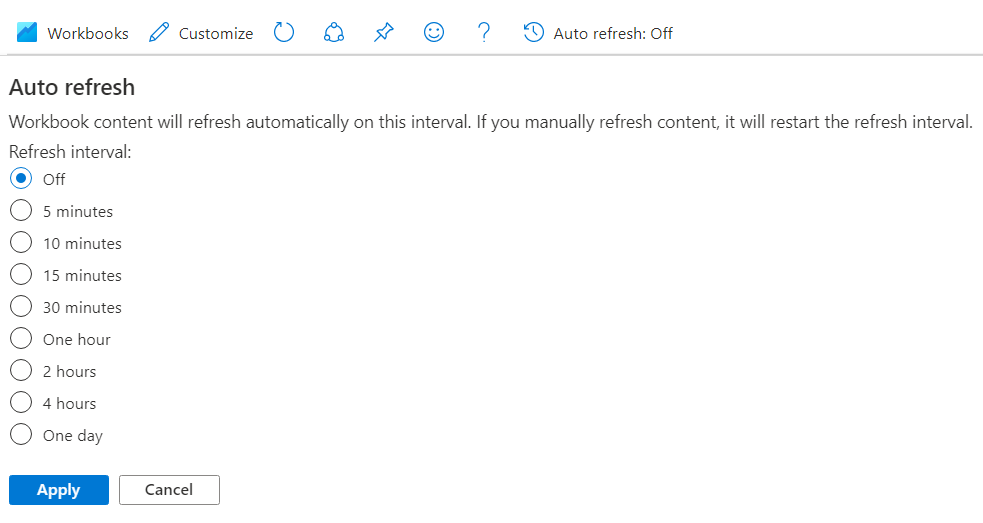
Just released is the ability to set a workbook to auto refresh, simply select the option from the tool bar at the top of the workbook page and choose a refresh interval.
I for one am loving all of the awesome features coming from the workbooks team and looking forward to what’s coming next!
I came across a great browser extension a while ago called Azure Mask. I’ve been following the development of it closely because for a while it didn’t work with Edge. That issue is now fixed so lets have a look.
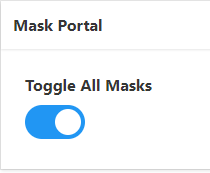
Azure mask does exactly what it says on the tin, it will mask your Azure subscription IDs and make them appear blurred out, this is a great tool for anyone presenting or screen sharing in Azure.
Looking at the below you can see exactly that
There’s even a hand toggle to easily turn the mask on and off
Azure Mask is available for Chrome (so it works on Edge) and Firefox and is available here from GitHub big kudos to developer Brian Clark
Update rollup 10 for SCOM is out you can get it here.
This is a reasonably solid update with a few fixes for some long outstanding issues.
Improvements and issues that are fixed
Management Pack Import is now compatible for SCOM 2007 –> SCOM 2016 Upgrade version when upgraded directly or Indirectly.
The exception which blocked further progress when the user attempted to configure web application availability monitoring has been fixed.
The security issue regarding reverse tabnabbing has been fixed in the operations manager web console.
Fixed the Cross-site Scripting (XSS) related security issue in the operations manager web console.
The cmdlet Export-SCOMEffectiveMonitoringConfiguration has been fixed to give a correct summary of the applicable monitors, rules and overrides on an object.
Quarterly report end date will be shown correctly for the first quarter when the “From” field is selected as “First day of previous quarter” and “To” field is selected as “Last day of previous quarter”.
Reports have been fixed to not show objects which have been deleted before the selected start time.
VB scripts for partition and grooming, calculate operations manager free space and detecting duplicate agent will now run without failure even if SNAC or MSOLEDBSQL are not installed.
The issue regarding the TLS 1.2 compatibility in the OleDB module has been fixed. It is no longer mandatory for the provider element to be the first reference in the connection string.
Fix has been provided for when the monitor erroneously turned critical due to the URL module incorrectly parsing the charset header value.
The .NET API issue regarding scheduling reports via the schedule management wizard has now been fixed.
Performance improvement: Added “Recompile” hint to the stored procedures “p_SelectForTypeCache” and “p_SelectForNewTypeCache” that run frequently on SCOM DB.
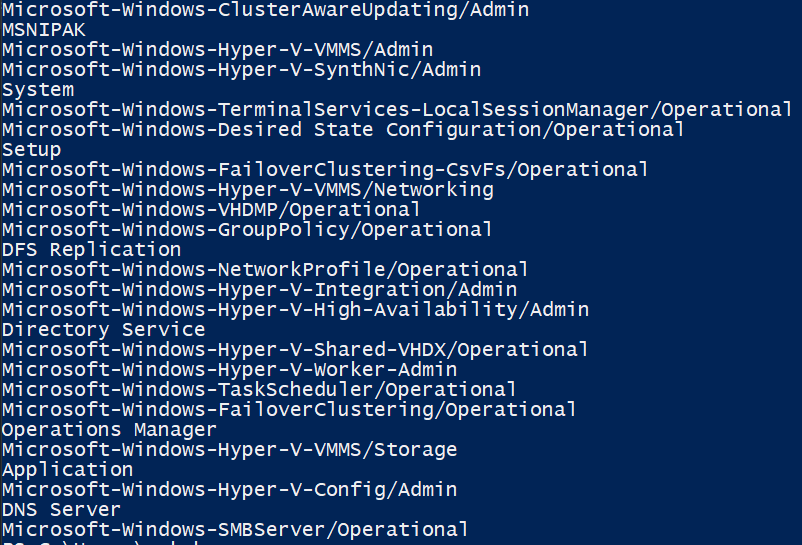
With Event Log collection in Azure Monitor Logs (Log Analytics), if the log name is too long you can’t see the full name in the UI and it can be tricky to check what the log is.
Especially if you don’t have data yet.
Here’s a quick script using Get-AzOperationalInsightsDataSource that will display the event logs you are collecting.