As it turns out the Exchange 2013 MP will not be able to alert you should your Exchange 2013 databases fail over, this is by design, as Microsoft does not consider this condition to be an issue.
There is a great article by Scott at flobee.net which addresses this issue for Exchange 2010, it is quite simple to apply the same thinking for use with Exchange 2013. The event is the same, the target just needs to be Exchange 2013 server.
A colleague of mine had an issue where the health service on one of his management servers would not start. The error displayed was “The System Center Management service terminated with service-specific error %%-2130771964″
The resolution is simple, rename the Health Service State folder and then start the service.
This issue is caused by corruption in the health service cache which is preventing the service from starting,
Stale Discovery Data – Device has been reconfigured since the last discovery and Operations Manager is attempting to monitor a component that no longer exists on the device.
If the device doesn’t support the workflow, then a solution is to disable the workflows utilizing the value for the device. This will prevent these workflows loading and failing in the future.
Possibly a device issue, try updating the Firmware and OS on the device
Possible a discovery issue where the instance is being discovered incorrectly. For example Operations Manager is expecting to monitor a performance counter but this is a virtual interface and the counters are not present for the interface. Try running a re-discovery for the device.
In my clients case the network devices in question did not respond to the information request of certain workflows.
I resolved the issue by creating a group and adding the ports which were not returning data to that group. Then I evaluated each of the event log errors for the name of the workflow that was executing the snmp get, see example below:
Log Name: Operations Manager
Source: Health Service Modules
Event ID: 11009
Error in SNMP GET response from IP Address: 10.11.11.1, Status: noSuchInstance(129).
One or more workflows were affected by this.
OID: .1.3.6.1.2.1.10.7.2.1.2.268 Workflow name: System.NetworkManagement.MIB2.NetworkAdapter.InputPacketBroadcastPct
Instance name: Port-37
There is a great reference at http://mpdb.azurewebsites.net which you can use to match up the workflow name to the corresponding rule or monitor. If I use the above example and search the page for System.NetworkManagement.MIB2.NetworkAdapter.InputPacketBroadcastPct I can see it correlates to a rule called Input Broadcast Packets Percentage (netcor) which I can override to turn off against the group I created earlier.
It can be a lengthy process and there are other causes which are easier to address so you will need to do some testing in each individual case.
Version 6.0.7297.0 of the Windows server management pack has been released and in available for download here.
Updates in this version:
In 2008, 2012 platforms, the “Logical Disk Free Space (%) Low” monitor do not alert as expected when free space is 0%. With this fix, this monitor will alert when free space is 0%
In all platforms, logical disks are un-discovered if we configure them as Asymmetric storage on Failover Cluster. With this fix, this issue will be resolved
The Windows Server OS Management pack collects logical disk size is megabytes. During discovery this value used to be assigned to integer property. When logical disk size is significantly large (for example, when disk is of several petabytes), in megabytes format it goes out of boundaries of integer type. As a result the workflow fails while trying to insert discovery data. To support large logical disk another double properties was introduced, since double type has much more wide values range. Old integer property with constant “-1” value is preserved for upgrade compatibility and marked as DEPRECETED
“Volume Mount Points on Dynamic Disks” aren’t discovered by Microsoft Windows Server 2012 Discovery MP. With this fix, this issue will be resolved
MP has been modified to not discover System Reserved volumes on Windows Server 2012 to ensure it is consistent with the rest of the OS versions
Microsoft has announced the release of a security update for System Center 2012 Operations Manager UR8 it is available for download here or through the catalog:
Issues that are fixed in this update rollup:
Operations Manager
The home page link on the Web Console noscript.aspx file is vulnerable to cross-site scripting (XSS)A security vulnerability exists in the Web Console for System Center 2012 Operations Manager that could allow elevation of privilege if a user visits an affected website by way of a specially crafted URL. This fix resolves that vulnerability. For more information, see Microsoft Security Bulletin MS15-086.
A new version of the Exchange 2013 MP has been released version 15.0.666.19 is available for download here.
Fixes in this version:
Fixed a bug that was unable to run Exchange 2013 performance reports when the console is running on a locale different from EN-US.
Exception: System.ArgumentNullException: Value cannot be null. Parameter name: GroupList
Fixed a bug that was causing the collection of Synthetic mailbox performance count data to fail when there are more than 2 management servers. Event 102 is logged on the management servers with the below exception.
Exception: System.Runtime.Serialization.SerializationException: Type ‘System.Object[]’ with data contract name ‘ArrayOfanyType:http://schemas.microsoft.com/2003/10/Serialization/Arrays’ is not expected.
Microsoft has released a new Update Rollup for the Microsoft Monitoring Agent it is available through windows update or via the catalog link in the KB article here.
Issues that are fixed in this update rollup
Support for Windows Server 2008 and Windows Vista. Add support for Windows Server 2008 and Windows Vista on-boarding to the Microsoft Operations Management Suite.
Maintain original identification after Operations Management Suite is disabled and then re-enabled or after agent is reinstalled. Preserve the identification of the system during upgrades or when enabling and disabling the Operations Management Suite. Previously, disabling and then re-enabling a connection to the Operations Management Suite caused a new agent identification to be generated.
Always use the Microsoft .NET Framework 4.0 for loading managed modules if it is available. Set a preference for the .NET Framework 4.0 when managed code is loaded in management packs. The .NET Framework 2.0 is used if the .NET Framework 4.0 is not available. Previously, the .NET Framework 4.0 would be used on Windows Server 2012, Windows 8, or later versions of Windows operating systems while the .NET Framework 2.0 was loaded on earlier versions of Windows.
Fix the Apply button that is not working in the Microsoft Monitoring Agent control panel.
Remove a dialog box that is displayed during a silent installation when a restart was required.
This situation will occur when you try and remove a management pack that utilities a Run As account. You’ll get an error that the management pack is dependent on Microsoft.SystemCenter.SecureReferenceOverride and removing that can be a little bit painful.
Anyone one who has ever removed a management pack with a dependency knows the old method of exporting the management pack, removing the offending refference and importing it back again. The steps for Microsoft.SystemCenter.SecureReferenceOverride are slightly different but the principle is the same.
1. First you need to remove the Run AS account from the Run As Profile
2. Export the Microsoft.SystemCenter.SecureReferenceOverride management pack
3. Edit the management pack and remove the references as you would with any other dependency
4. Increment the management pack version
5. Re import the management pack
Here is a nice method from Matthew Long which uses powershell and doesn’t require any XML editing.
The below is copied for my records, original posting here
Open a powershell session with the Operations Manager module/snappin loaded.
Now we can view the referenced management packs by typing $MP.References
From the list of items in the Key column, note down the alias of your MP you wish to delete. If you are having trouble finding it, the Value column will list the full ID of the MP.
Now that we know the MP alias, we can remove it from the Secure Reference MP by typing $MP.References.Remove(“yourMPAliasGoesHere“)
Now we can verify the MP is valid by entering $MP.Verify() to ensure there are no orphaned overrides, etc.
Finally, we can save our changes by typing: $MP.AcceptChanges()
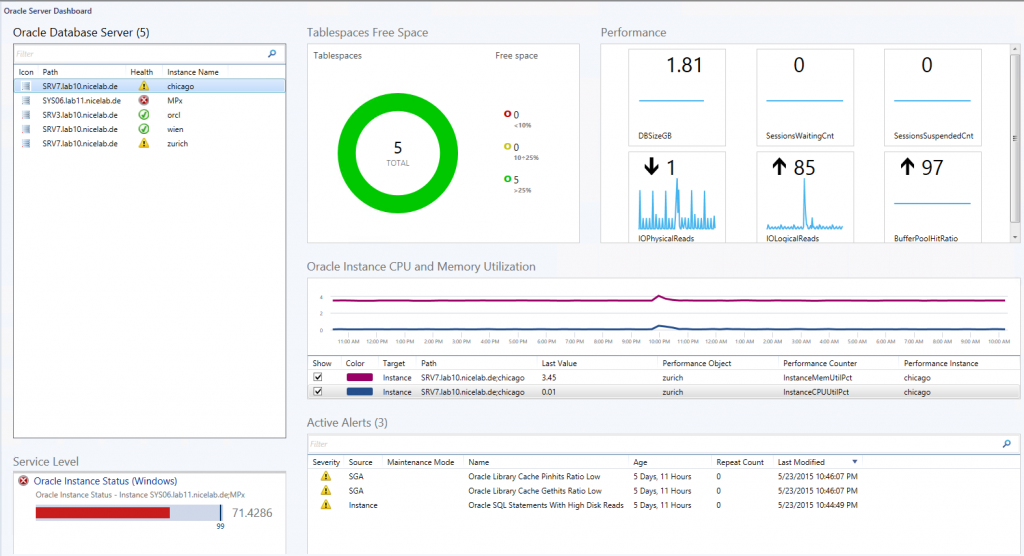
NiCE have released an update to their Oracle Management Pack offering. Information on version 3.10 as well as pricing is available at their site NiCE.de.
This new version comes with a nice (pun intended) dashboard view as you can see below, as well as a host of new features:
NEW Oracle Database monitoring features:
Upgraded widget-based visual dashboards
New and upgraded monitors and rules
Improved support for various cluster technologies, incl. FailSafe, RAC and DataGuard
Even more cluster support: Updated cluster views and discoveries
Dedicated Oracle 12c container database discoveries, monitors and rules
Support Oracle 9i,Oracle 10g, 11g and 12c included
Usability improvements for the configuration of large environments
Improved diagnostic tasks for SQL monitoring
Various documentation updates and extensions
Build-on and enhanced MP Self-Monitoring
Custom performance rule parameter to configure data warehouse storage
NEW Oracle ASM monitoring:
Full features Oracle ASM instance monitoring – out of the box
Discovery and monitoring of ASM Disk Group and ASM Instances