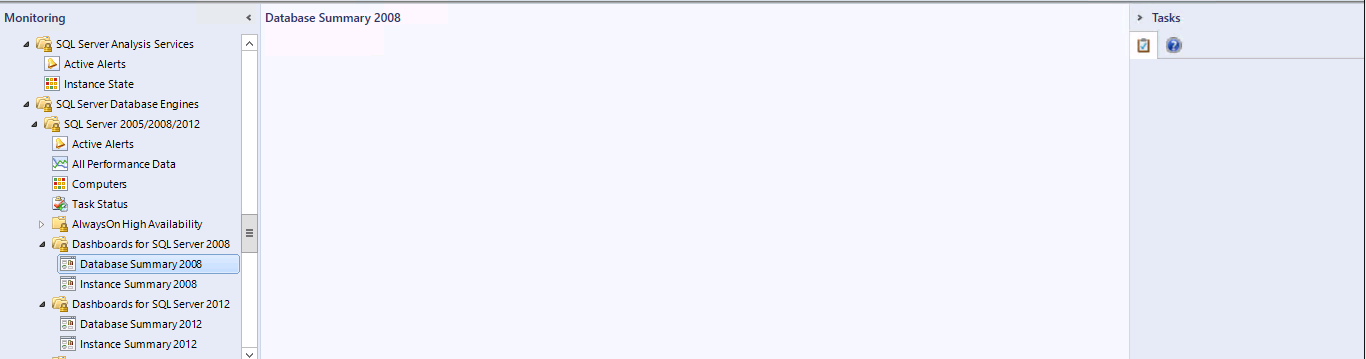
It’s always the bugs you come across when you are trying to do something else that can be the most frustrating. Today while creating some dashboards for one of my clients the views returned blank after saving them.
I then had a look at the SQL built in dashboards to see how widespread this issue was and had the same results. The dashboard pane was blank and the tasks also did not display.
First I tried restarting the console with the /clearcache command and this usually address display issues and had the same result.
I then tried a console on a different server and then I tested using the web console both loaded the dashboards properly . So I was dealing with a server issue or a profile issue.
A bit of research suggested that sometimes this problem can be caused by a corrupt .net installation. As this requires change approval in order to address I first tested the profile option by logging on to the same server, where I experienced the issue with another user account. This time the dashboards loaded correctly so it’s probably not a .net issue.
Considering that /clearcache didn’t work I wanted to first try and remove the momcache.mdb cache file located in C:\Users\<user account>\AppData\Local\Microsoft\Microsoft.EnterpriseManagement.Monitoring.Console in order to test all options before recreating the user profile.
After deleting momcache.mdb and re-opening the console all the dashboards now loaded correctly.
A management pack for Skype for Business Server 2015 has been released and is available for download here.
Skype for Business Server 2015, Management Pack contain comprehensive monitoring tools including:
End-to-End scenario availability from various locations.
Call reliability and quality perceived by real users.
Component health and performance.
Active Monitoring Management pack
Geographically distributable end-to-end scenario validation for Skype for Business Server 2015 deployments. This includes coverage for internal, remote and branch office users.
Increased scenario coverage in areas like AV Edge Connectivity and Exchange Unified Message Connectivity.
Enhanced troubleshooting logs to streamline root cause analysis of failures.
Component and User Management Pack
Increased reliability monitoring of real end user calls and conferences.
Integrated media quality alerts driven from Quality of Experience (QoE) data reported by client applications.
Full event and performance monitoring for all Skype for Business Server 2015 roles.
Over at the MS SCOM engineering Blog it’s been newly released that SCOM 2012 R2 now supports SQL Server 2008 R2 SP3.
There is a catch though see below for what to be aware of:
Issue: Fresh Install of SCOM 2012 R2 on SQL 2008 R2 SP3 will not work Workaround: Deploy SCOM 2012 R2 on to SQL 2008 R2 SP2 and after installation upgrade the DB to SQL 2008 R2 SP3
An odd issue I encountered today at one of my customers that has recently completed a migration to SCOM 2012 R2, when trying to open the overrides node with no scope selected I got the following error “An object of class ManagementPackClass with ID <GUID Removed> was not found” and then the view shows 0 overrides until the console is reopened with a /clearcache.
Turns out this error is caused by having an override that references a class that no longer exists, in order to track it down you first have to access the overrides which you can no longer see unless you do the following:
1. Export your overrides to text file using poweshell by running get-scomoverride | out-file c:\SCOMOverrides.txt 2. Search the output text file for the GUID which was in the original error “An object of class ManagementPackClass with ID <GUID Removed> was not found”
3. The GUID will appear on a line labeled Context, below that one look for a line labeled Identifier, In my case it looked as follows “Identifier: 1|Windows.Operating.System.Custom.Monitors”
4. Generally this is enough information to identify which management pack needs to be deleted if it is not then continue to step 5
5. In SQL run the following query, remebering to edit it for your Identifier, against your operationsmanager database select * from ManagementPack where ManagementPackSystemName like ‘Windows.Operating.System.Custom.Monitors’ 6. Once you have identified which management pack is causing your issue it needs to be deleted, once the new configuration is processed you will be able to see your overrides again.
The SCOM team over at Microsoft is looking for your feedback! If you’ve ever thought to yourself, “I with SCOM had feature X” as I’m sure many of us have this is the time to have your voice heard. This is where cool stuff like the built in maintenance mode feature in the upcoming SCOM 2016 comes from.
Microsoft has released a new version of the Windows Server Print Server MP version 6.0.7294.0 is available for download here.
New in this version:
Version 6.0.7294 of the Management Pack for Windows Print Server supports Print Clusters.
Removed “Microsoft.Windows.Server.PrintServer.mp” since we have dropped support for Windows server 2003. Please ignore all sections in this document related to Windows Server 2003 / Microsoft.Windows.Server.PrintServer.mp.
Kevin Holman has more in this management pack here with a warning for those of you with large print environments.
Here is a brief rundown of the new features in addition to overall tuning and general improvements :
Sphere 6.0 support – pretty much self explanatory
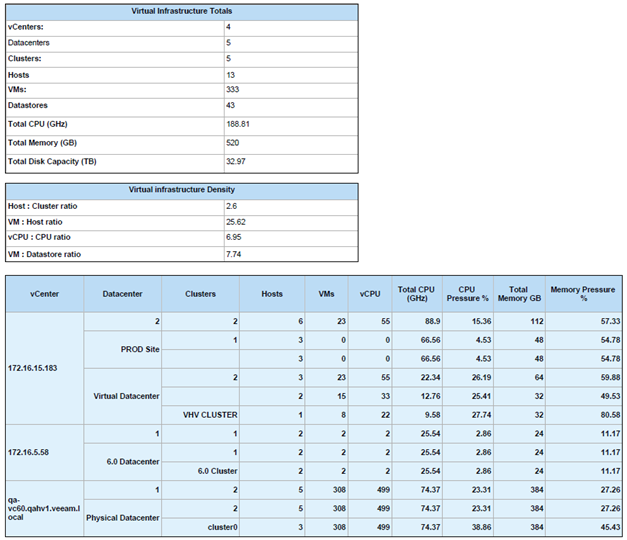
The Morning Coffee report – Veeam MP’s new Infrastructure Summary report provides a single overview report to check the status of the entire environment.
Hybrid Cloud Capacity Planningreport – The report now offers updated analytics with improved logic and accuracy.
Checkpoint/vSphere snapshot tracking – Now includes a heatmap to assist in quickly identifying storage-related performance issues across the entire virtual environment
Support for SMB shares for Hyper-V – SMB shares can now be seen in the Storage Topology view, with drill-down to the virtual machine (VM) level.