We had a server that went down and didn’t generate alerts for Heartbeat Failure or Could not Connect to Computer.
What I’d found is that there is a group in SCOM called
“Managed Computer Client Health Service Watcher Group” and there is a default
override to disable generating alerts for Heartbeat Failure or Could not
Connect to Computer against this group.
This group is apparently intended for workstations being monitored by SCOM and is dynamically populated but sometimes servers also ended up in there.
I you don’t monitor workstations the easiest solution is to create a second override to enable those alerts and just enforce it.
During our SCOM 2012 upgrade I came across some 2007 agents would not upgrade to 2012 due to being unable to complete the uninstall portion of the agent installer.
Errors we experienced included corrupt MSIEXEC packages and a rollback of the 2012 agent upgrade with the message “unable to install performance counters.”
After attempting manually uninstalling from Add / Remove programs as well as the SCOM 2007 removal tool with no success we came across a tool called MSIZAP. (Thanks to Jonathan Almquist for his great blog post pointing us in the right direction)
The following process will allow you to remove the SCOM agent from your servers which will in turn allow you to install your new 2012 agent: As always backup your registry before attempting any process that makes changes to it.
Download MSIZAP and copy to a location on the affected computer.
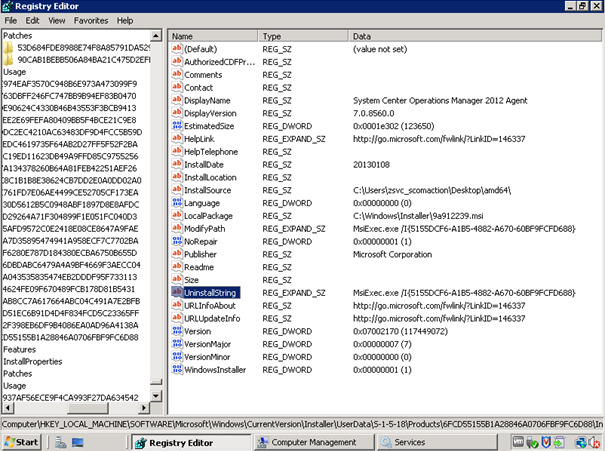
Find the product code, which is a GUID that is required for the MSIZAP product code switch. This can be found by opening the registry and navigating to:HKLM\SOFTWARE\Microsoft\Windows\CurrentVersion\Uninstall
With the Uninstall key highlighted, click on Edit > Find, and look for the string System Center Operations Manager. Open the UninstallString string value, and copy the GUID. Include the squiggly brackets.
3. Open an elevated command prompt and run the program as follows:
4. Delete the SCOM program files, usually located under “%ProgramFiles%\System Center Operations Manager 2007”. Some files may be locked those can be ignored.
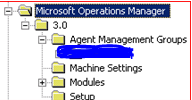
5. Open the registry, search for the Management Group name
6. Delete the Microsoft Operations Manager key that the management group name is part of
7.Open the registry and navigate to:
HKLM\System\CurrentControlSet\Services
Delete the following registry entries:
healthservice
opsmgr*
MOMConnector
System Center Management APM (2012 only)
8. Reboot the server
You will now be able to install your agent manually or with your console.
The other day I needed to add a large amount of objects (860) to an availability report. After the report ran I noticed that only 500 objects were present in the report view, as it turns out this is by design.
In your registry you need to browse to the following key:
Create a new DWORD value key that is named MaximumSearchItemLimit, and then assign it a decimal value to reflect the number of objects that you want to display. For example, use a value of 1000 if you want to limit the maximum number of objects to 1000 instead of the default of 500.
Name: MaximumSearchItemLimit Type: REG_DWORD Value: 0 to 65535
Close and re-open your console.
You will now be able to search the number of objects that you set the value to.
Note: This needs to be applied on each machine running a console that you want to remove the restriction from.
Recently I’ve had to recover a SCOM environment. This process required me to restore the SQL backups of both the OperationsManager and Data Warehouse databases.
After stopping the SDK service on our RMS, trying to restore the backup from the management studio under Tasks > Restore > Database I came across a frustrating error “Exclusive access could not be obtained as the database is in use.”
A bit of research led me to an easier way to perform the restore, as well as check what is blocking the exclusive access,
First in SQL management studio select your master database and click new query:
USE MASTER ALTER DATABASE DATABASENAME SET SINGLE_USER WITH ROLLBACK IMMEDIATE GO
-This will make it so only one connection to the database can be made. -Run the following command to see where any recurring connections to database are coming from.
EXEC SP_WHO2
-Check this list, looking under the DBName column. If the database is listed, check the ProgramName, and HostName column to see who is attempting to connect. -If it is not a service, or other application that would automatically reconnect which can be shut down, note the number in the SPID column to kill the connection, and immediately begin the backup. Replace SPID below with just the number.
KILL SPID RESTORE DATABASE DATABASENAME FROM DISK = ‘X:\PATHTO\BACKUP.BAK’ GO
-If this completes successfully, we can set the newly restored database back to multi user mode.
ALTER DATABASE DATABASENAME SET MULTI_USER WITH ROLLBACK IMMEDIATE GO
After restoring your OperationsManager database you will also have to re-enable your SQL Broker as it is required in order for your SCOM discoveries to work.
To check if your SQL broker is enabled run the following query, returning a value of ‘0’ means that the Broker is disabled.
SELECT is_broker_enabled FROM sys.databases WHERE name='OperationsManager'
To enable the Broker user the following queries:
ALTER DATABASE OperationsManager SET SINGLE_USER WITH ROLLBACK IMMEDIATE
ALTER DATABASE OperationsManager SET ENABLE_BROKER
ALTER DATABASE OperationsManager SET MULTI_USER
We had a requirement to alert when an account was created in AD with the “Password will not expire” flag on and when an existing account is changed to a password that will not expire for audit purposes.
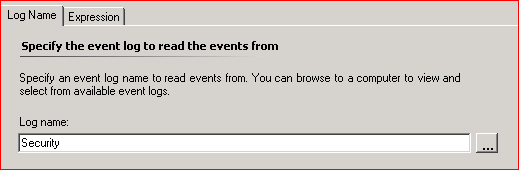
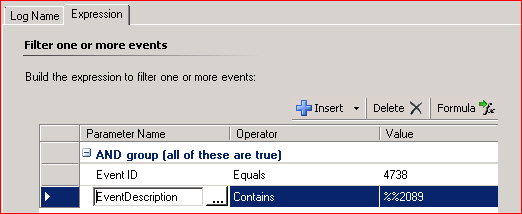
It can be done using the following alert generating rule:
The reason for the %%2089 is that events on the domain controller are generated using codes which are then converted to English in the event viewer. Something to bear in mind when creating rules to look at DC event logs.